| Open vCenter |  |
| Select a matching template | 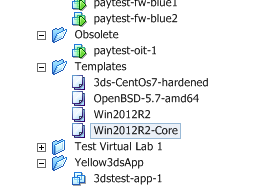 |
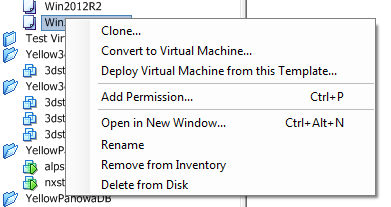
| Right click and choose
|
 |
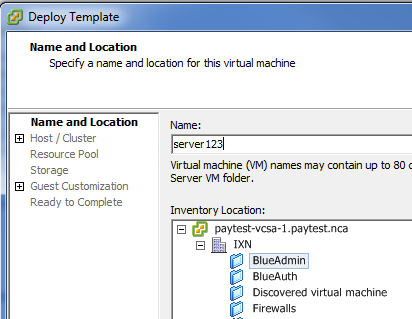
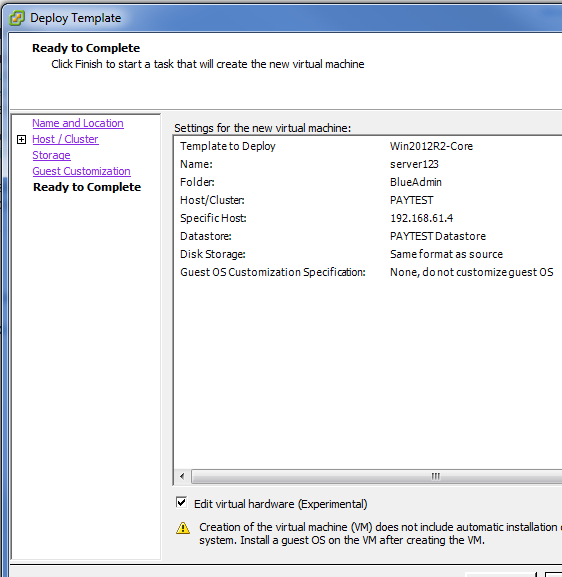
| Enter the Name of the Server
and select a folder
|
 |
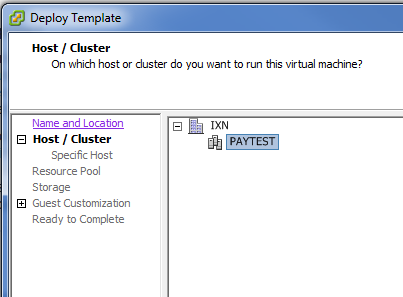
| Select the cluster
|
 |
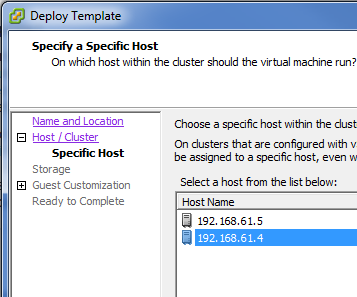
| Select the host in the cluster
|
 |
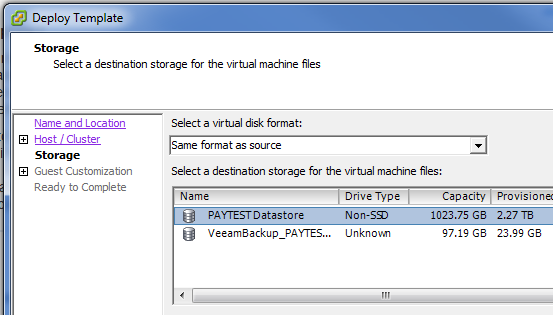
| Select the storage
|
 |
 |
 |

|
 |
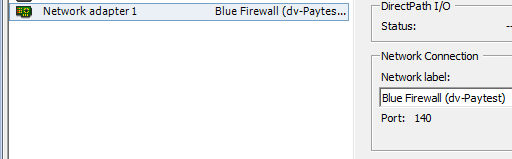
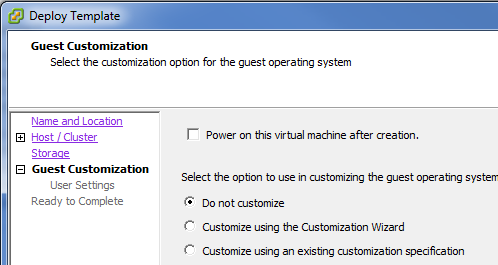
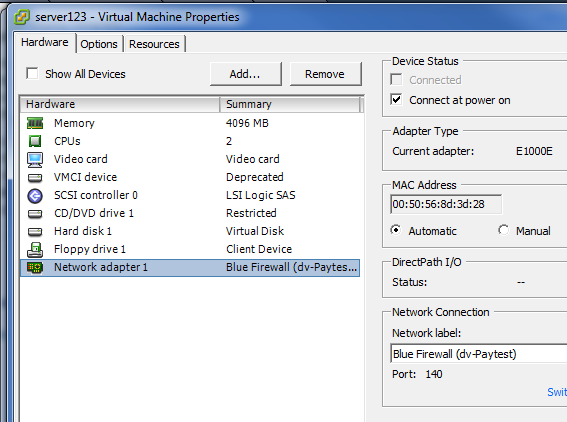
Set the proper Network
|
 |
 |



Sysprep
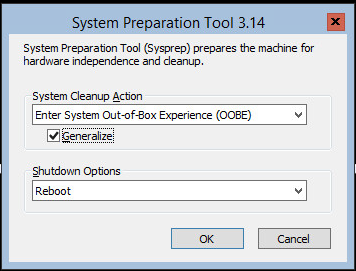
You need to generalize after the cloning
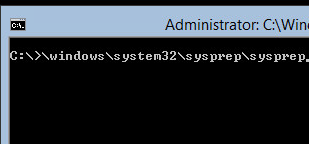
| Enter
\windows\system32\sysprep\sysprep |
 |
| Select OOBE
And don’t forget
|
 |


Rename-computer, change Name
Note: you should not use sconfig for this if you do not want to have the hostname
in capital letters
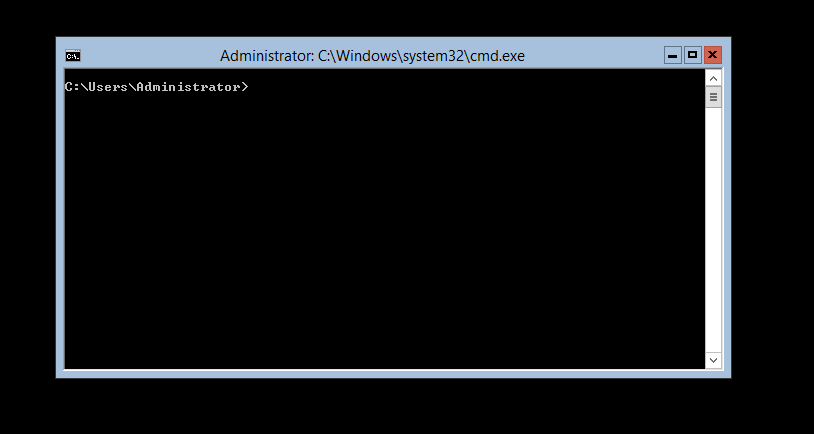
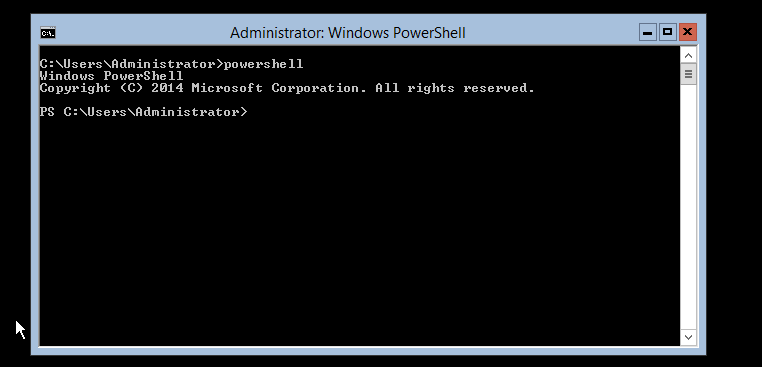
| Start Powershell
Enter “Powershell” at the prompt |
 |
Change Name of the Server
Rename-computer –NewName ComputerName
Reboot Server
Shutdown –r –t 0
Change IP Address to Fix
This can be done by sconfig as well
(just enter sconfig at the prompt)
| Start Powershell
Enter “Powershell” at the prompt |
 |
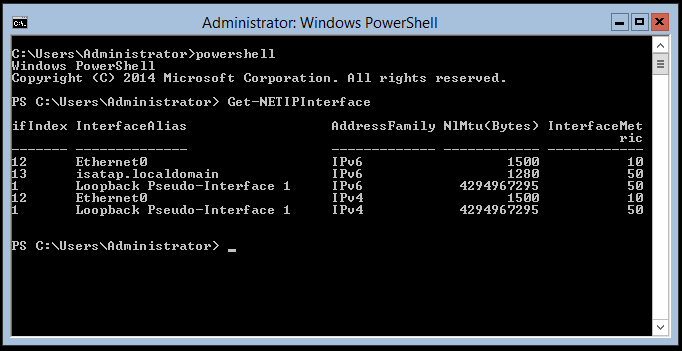
Identify the NIC
Get-NETIPInterface
Set the IP V4 address
New-NetIPAddress -InterfaceIndex 12 -IPAddress 172.20.100.20 -PrefixLength 24 -DefaultGateway 172.20.100.1
Set the DNS address
Set-DNSClientServerAddress –InterfaceIndex 12 -ServerAddresses (“172.20.20.20”,“172.20.20.21”)
Configure the TCP/IP protocol with DNS settings
Nslookup
Enable Remote management
Enable-NetFirewallRule –displaygroup “Windows Remote Management”